SPSS handleiding

Opening an existing data file
File → Open → Data
Saving output (uitvoer)
In Output → File → Save → Kies een map → Typ de file name (zonder .svp erachter) → Save
Closing SPSS
File → Exit
Values invoeren (variable view)
Klik op de desbetreffende value (vb. sex) → drie puntjes
Value: 1
Label: male
→ add en herhaal
Klaar → OK
Missing Values invoeren
Klik op missing → drie puntjes → discrete missing values → 9,99 invoeren in het eerste vakje - typ met komma’s een getal
Data sorteren
Klik op Data → Sort Cases → kies welke variabele → Kies ascending of descending
Staafdiagram
Graphs → Legacy dialogs → Bar → Simple → Define
Measures
Year of birth/ month/ height/ weight = Scale
Sex/ zodiac sign/ education/ marital status = Nominal
als de values een likert schaal zijn = Ordinaal
Select cases
Data → select cases → if condition is satisfied → If → kies variabele → = → de waarde die je nodig hebt vb. 1 voor female) → continue → ok
Voor alle analyses die je nu uitvoert wordt alleen de geselecteerde groep meegnomen. Als je klaar bent ga terug naar select cases → all cases → ok
Grouping data
Transform → Recode into different variables
Kies variabele (vb. height) → geef aan de rechterkant nieuwe naam (vb. H1)
Klik op old en new values
‘Range lowest’: < 1,75 en aan de rechtkant bij value vul 1 in en klik op add
Range tussen: 1,75 en 1,90 → ‘Range’ 1,75 en 1,899 - value: 2 → add
‘Range highest’: 1,90 - value: 3 → add
Continue → OK
Histogram
Data → Legacy Dialogs → Histogram → plaats de variabele naar de kollom variabele → OK
Wanneer de histogram er raar uitziet check dan of missing values gedefinieert is

Frequentietabel:
Analyze → Descriptive Statistics → Frequencies
Abslote frequentie = frequentie 1e kollom (gewoon aflezen niks optellen)
Relatieve frequnetie = percentage
Cummulatieve = laatste kollom (%)
Decriptives opvragen zoals: mean, st, min en max:
Analyze → Descriptive Statistics → Descriptives → Options
Boxplot:
Graphs → Chart Builder → OK
Click on gallery en kies Boxplot → 1-D Boxplot slepen naar het witte vak
Sleep de variabele naar de Y Axis
Klik op OK
Dubbelklik op de boxplot voor Chart Editor
Side by side Boxplot:
Graphs → Chart Builder → OK
Click on gallery en kies Boxplot → Simple Boxplot slepen naar het witte vak
Sleep de variabele naar de Y Axis
Sleep de andere variabele (vb. Sex) naar X Axis
Klik op OK
Range = Max - Min
IQR = Q3 - Q1

Histogram met normaalcurve
Optie 1:
Graphs → Chart Builder
Sleep histogram naar het midden
vink ‘display normal curve’ aan
Kies variabele en sleep naar de X-as
OK
Optie 2:
Graphs, Legacy Dialoges, histogram
Kies variabele
vink ‘display normal curve’ aan
Ok
Z-scores berekenen:
Analyze → Descriptive Statistics → Descriptives
Kies variabele
vink ‘save standardized values as variables’ aan
Laatste kollom in Data View laat z-scores zien
Mean, ST, min en max van de z-scores:
Analyze → Descriptive Statistics → Discriptives
Kies voor variabele Z-scores
Options: mean, st, min, max (je verwacht mean= 0 en st=1)
OK
Scatterplots maken:
Graphs → Legacy Dialogs → scatterplot/ dots
Simple scatter → Define
Y-as + X-as variabele invoeren
(als je op basis van geslacht wilt hebben dit invoeren bij ‘set markers by’)
OK

Pearson r berekenen
Analyze → Correlatie → Bivariatie
Kies variabele (kan 2, 3 of meer)
Vink ‘Pearson’ aan
Options: onder missing values vink ‘exclude cases pairuise’ aan
Continue en OK
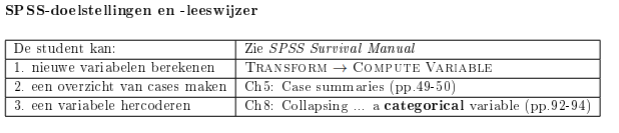
Recoding data (blz. 93)
Transform → Recode into Different Variables
Selecteer de variabele die je wilt veranderen → Name: kies een nieuwe naam → Change
Klik op Old and New Values
In de Old Value sectie type in de code van de huidige variabele
In de New Value sectie typ in de nieuwe code voor de variabele → add
System or user missing → missing variabele bij new value
→ Continue and OK (aan het einde van de data view staat nieuwe kollom)
Case summeries (blz. 50)
Klik op Analyze → Reports → Case Summaries
Kies de variabele(n) die je wilt zien (kies er 2 als je wilt vergelijken of het gelukt is)
Ontvink het boxje van Limit cases to first 100
Klik op Statistics en haal de number of cases weg van de statistics box → Continue
Klik op Options en haal de Subheadings for totals weg
→ Continue en OK
Variabelen berekenen/ optellen
Transform → Computer variabele
Target variable (vb. ‘Totalopt’ zelf invullen) = sleep alle variabelen die je bij elkaar wilt optellen naar het rechtervak … + …+ …+ → OK
Van cm → inch
Transform → Compute variables
Variabele (height in meters) →
Bereken hoeveel inch in meters:
1 inch = 2,54 cm
1 : 2,54 = 0,3937 = 1cm
0,3937 x 100 = 39,37
Target variabele nieuwe naam geven
Height * 39,37
OK
van kg → g = x1000